
A request QR code opens a MarketScale Studio Media Request on a contributor’s phone. Use it at a company party, in an onboarding welcome packet, beside a product display, or on a flyer, poster or business card. The person scans the code and follows the request’s response steps.
For examples and an overview, explore QR codes for Studio Media Requests. To build the request itself, start with Create and manage requests.
Before you start
Use an account that owns or can manage the request. QR sharing requires an active request with an open link; it is unavailable for closed, paused or draft requests and for requests without open-link access. Anyone with the code can open the request, so choose prompts and terms suitable for the people who may receive it.
Scanning opens the request and its normal response flow. It does not bypass identity, terms or other steps the request requires. Keep the request open through the event or the period printed on your materials.
Create a QR code with the AI request builder
Open a new request in Studio and describe what you want to collect. For example: “Ask guests at our company party to record their favorite team moment.” Review the suggested title, questions and answer types.
Finish the request settings and create the request. When the sharing choices appear, choose QR code. If you create several requests, each request has its own code and destination.
Open Request QR code for the request you want to share. Choose a design and download it using the instructions below. If setup is interrupted, review the saved request and continue its setup rather than creating a duplicate.
Create a QR code with the manual request builder
From the new-request screen, choose Use manual request builder. Add a clear title, a reason to answer, and at least one question or instruction.
Under How would you like to collect responses?, choose QR code. Review the close date and any additional settings.
Choose Continue to QR code. Studio saves the request and prepares QR sharing. Open Request QR code to choose and download the design. If setup cannot finish, use the continuation action for the saved request.
Get the QR code for an existing request
Find the request in your Requests list. Check that it is active, has an open link, and has not passed its close date.
On its card, choose the QR code action or open the card menu and choose QR code, beside Copy link. You must own or be allowed to manage that request.
In Request QR code, check the request title before downloading. For an existing request that needs QR sharing added, open its management flow and choose QR code from the sharing choices.
Choose a design and download the right file
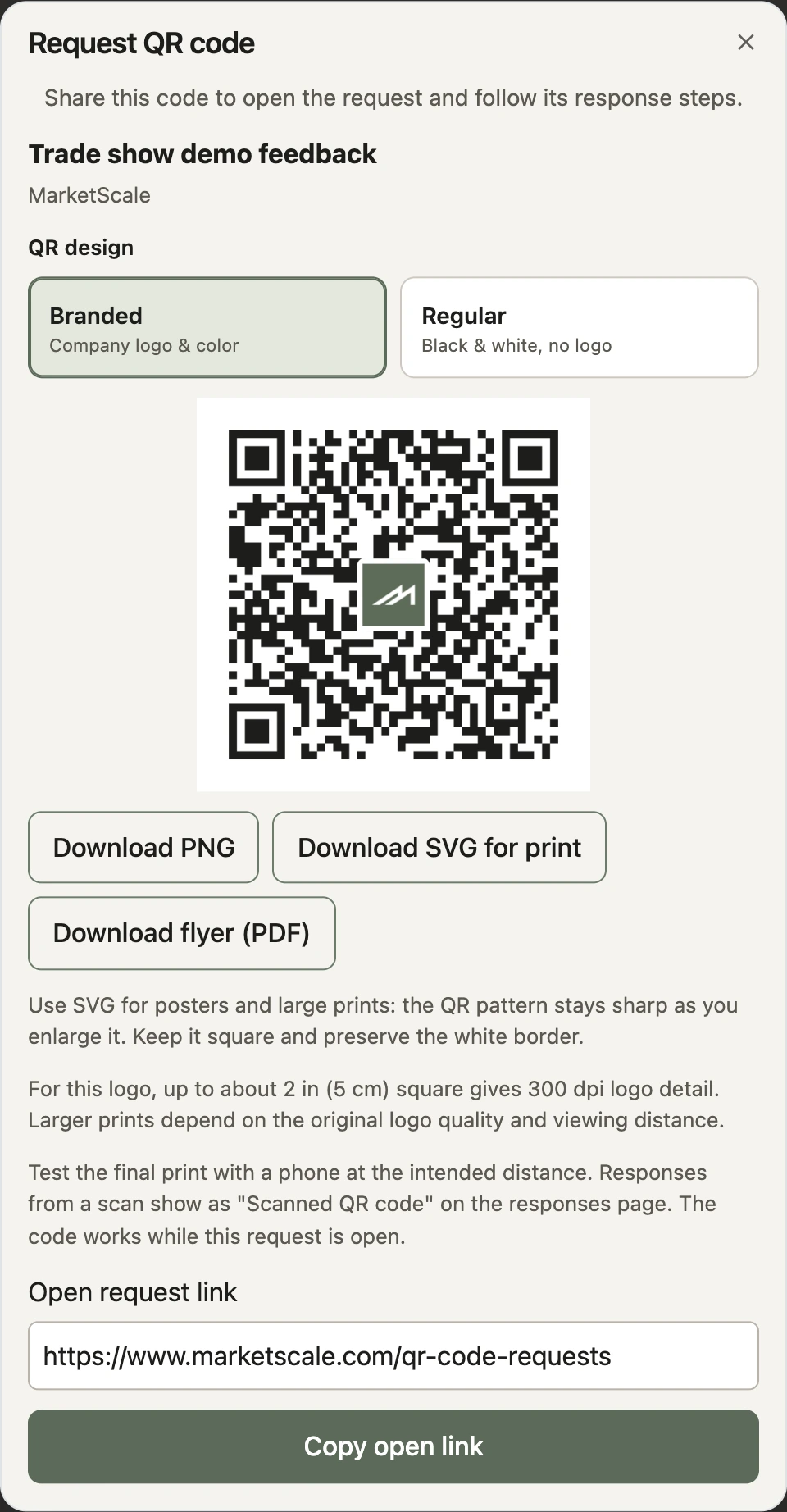
- Branded uses the company logo and color when available. Studio may use a darker shade to keep the pattern readable. If the logo is unavailable, the code can still open the request; check the notice in the dialog.
- Regular is black and white with no logo. Use it when you need a simple design or a branded export is unavailable.
- Download PNG saves an image for screen sharing and designs that accept images. Avoid stretching a small image into a large poster.
- Download SVG for print keeps the QR pattern sharp when resized. Use it for flyers, posters and large prints when your design tool or printer accepts SVG. A logo within the design still depends on the quality of its original image.
- Download flyer (PDF) creates a printable sheet from the request title, questions and selected QR design. Use it for a sign or handout when you want a finished layout. Open an example Studio flyer (PDF). Its sample code opens the public Media Requests guide.
- Copy open link copies the same destination as the QR code. Paste it into an invitation or use it to check where the code leads. If copying fails, select and copy the displayed open request link manually.
Prepare and test the final print
Place the downloaded code into your design. Keep it square and preserve the complete white border. Keep text, logos and background artwork outside that border.
Add a clear invitation next to it. A party poster might say “Share your favorite team moment.” An onboarding card could say “Introduce yourself to the team.” A product-feedback flyer could ask “What should we improve next?”
Print a proof at the final size on the intended material. Scan it with a phone at the distance people will actually use. Try the finished business card in your hand and the poster on the wall; the right size depends on viewing distance, print quality and lighting.
Check that the correct request opens and that its questions and response steps make sense on a phone. Recheck the close date before printing the full batch. Ask a colleague to test the proof too.
Expected result: scanning the final artwork opens the intended active request. People can follow its questions and submit a response while it remains open. Downloading artwork does not keep a closed request available.
Troubleshoot QR sharing and printing
- The QR action is missing: check that you own or can manage the request, that the request is active, and that it supports an open link. Review its status and close date with the owner.
- The design will not generate: choose Try again or switch between Branded and Regular. Use Copy open link to check that the request destination is available.
- The code scans on screen but not on paper: use the SVG export, restore the white border, remove distortion and increase the printed size. Reduce glare and test under the event’s lighting.
- The code scans but the request is closed: the artwork may be fine. Ask the owner to review the request’s status and close date before circulating it again.
- The logo looks soft: follow any logo-size guidance shown in the dialog, use a higher-resolution company logo for large prints, or choose Regular. SVG keeps the QR pattern sharp but cannot add detail to the original logo.
Make the request easier to answer
Add a personal welcome with Ask a question on camera. For a known list of guests or new hires, use CSV email invitations alongside your printed invitation.
Rewards are optional. If your company is eligible and wants to offer one, read Offer a Request reward and confirm the reward’s conditions before mentioning it on a print piece. For channel members sending existing photos or clips from their messaging app, see Text to Upload.