
Use the address that was invited
- 01
Open the invitation
Check the channel named in the message.
- 02
Continue with email
Enter the same email address that received the invitation.
- 03
Confirm your access
Complete sign-in and check the intended channel and task.
A Request response link is different from a channel invitation.
Before you start
Have the invitation email and access to that mailbox. A channel invitation and a Request response link serve different purposes: a response link does not grant channel-management access.
Steps
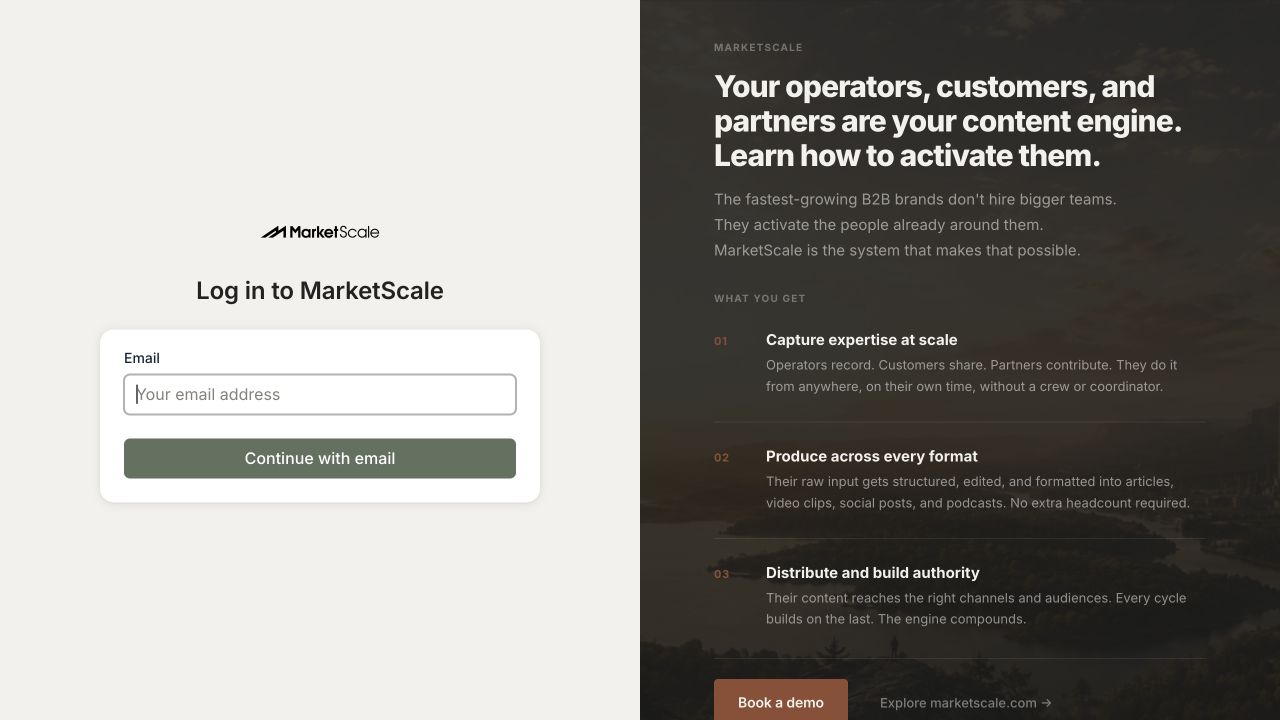
Open the invitation in the invited mailbox and follow its invitation link. Check the sender and channel named in the message.
If Studio asks you to sign in, use that same email address. On the current sign-in screen, enter Email and choose Continue with email. Complete the sign-in or organization sign-in steps offered for your account.
If profile or account setup is requested, complete the required fields and the displayed final action. Do not create a second account with another email to work around an invitation problem.
After sign-in, confirm you are in the intended channel. Ask the inviter to verify your active membership and assigned role if the channel does not appear.
Choose a first task that matches your access. A Member/Standard user can use the creation features permitted in the channel. A Contributor/VIP Guest has limited access to their own work and assigned participation. A Social user shares approved content and does not have recording, upload, Requests or editing access.
Open the specific Request or approved asset your inviter sent. Confirm you can complete that task before assuming setup is finished.
Check the result
You should reach the correct channel with the intended role and be able to open the first assigned task. Business title and profile details do not grant platform permissions.
If something does not work
No invitation email: check spam and confirm the address with the inviter. Ask for a resend of the pending invitation if needed.
Signed in to the wrong account: sign out and reopen the invitation using the invited email address.
The invitation is expired, removed or unavailable: ask the inviter to inspect your membership and resend or restore access as appropriate.
Missing creation controls as a Social user is expected. Ask the Admin to review the role only if your actual responsibilities include creating content.
A Request link is closed or paused: contact its owner. Repeated account creation will not reopen it.
Related: Invite people to your MarketScale Studio channel · Get started as a Social user · Choose a Guest invitation, Social role or Request link
Keep exploring
- The MarketScale platform: capture, edit, and publish in one place.
- Plans and pricing: flat monthly pricing you can compare before you talk to anyone.
- Contact support: get help with your MarketScale Studio workflow.